I have to repeat at this point that Photoshop is the Cadillac of photo editors. It is truly a fabulous tool for enhancing images. Any photo edit that I have described so far can certainly also be done using Photoshop. The point being that 90% of problems with photos can be quickly taken care of by using Picasa's editing tools. Those of you who have been using Photoshop for some time know its power. The downside is that it takes a while to load an image into Photoshop and then once you have your hands on the image you find yourself tweaking away using all of the editor's bells and whistles. And, when you have several hundred vacation pictures to go through, you are looking at weeks of work.
When you install Picasa on your computer, the program automatically scans your hard drive and generates a copy of every image and stores these copies in the Picasa Library. If you edit an image inside of Picasa you are only working on a copy of the original. To prove this to yourself, right-click on that image, and in the popup menu left-click on "Locate on disk." In this way you can see the edited version inside of Picasa and the original version safe and sound on your computer's hard drive.
To open an image in the Photoshop editor, right-click on an image in the Picasa Library, and on the pop up menu left-click on "Open with" and finally, on the new popup menu, left-click on the Photoshop software that you are using. You will be working on the original image while in Photoshop. To ensure that you keep the original picture untouched, click on "File" and then on "Duplicate" in the drop-down menu. In the pop up dialog box, type in a short meaningful name for your image. The title of your photo at the very top of the screen will change to reflect what you have chosen for the image name. I will demonstrate this in the following video.
By the way, I didn't finish this video tutorial by sharpening the photo. This photo had already been sharpened once and you should only sharpen once. If I had been editing this photo from the start, I would have done the sharpening at the end as I always do.
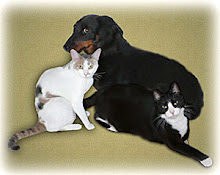
There is a bonus picture at the bottom for additional practice. It would be a good idea to view this video more than once and to practice on both photographs. The keyboard shortcuts explained in this tutorial will come in handy in later blogs. Repetition is the key so practice, practice, etc.
BEFORE:

VIDEO TUTORIAL:
AFTER:

PRACTICE IMAGE:


No comments:
Post a Comment